Pocket Tools › Find & Replace with Preview
Google Docs add-on
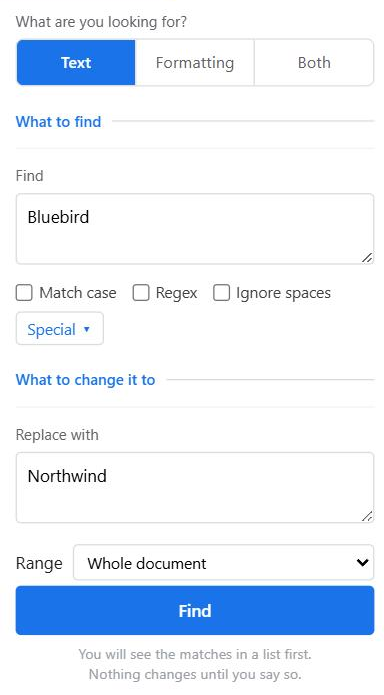
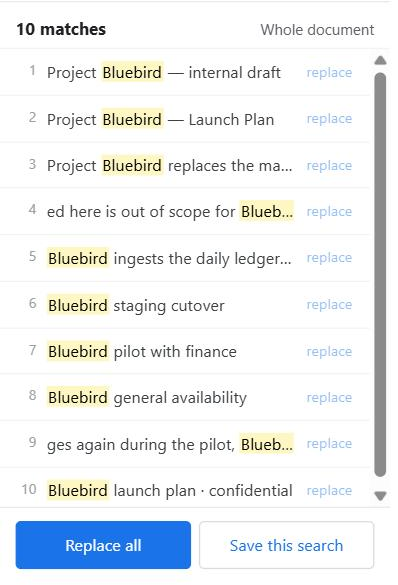
Google Docs will tell you it replaced 47 things. It will not tell you which 47. This add-on shows you the list first, and will not replace anything that is not on it.
A sidebar for Google Docs that adds the two things the built-in find and replace does not have: a list of what it is about to change, and search by formatting. The contents of your document never leave Google, and there is no Pocket Tools server. The only request that goes outside is the paid license check, described below.
Extensions → Find & Replace with Preview → Open Find & Replace. The panel opens on the right and stays with the document you are in.
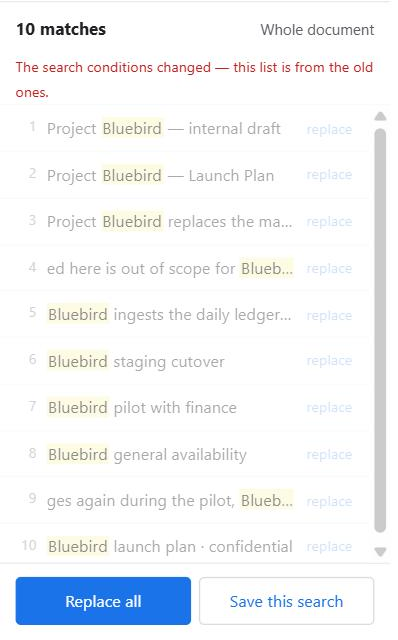
If you change the search conditions, the selection, or the document after pressing Find, the list is marked out of date and replacing is blocked until you search again. The list and the replacement can never disagree.
Type what you are looking for and press Enter to search. A search cannot contain a line break — Google Docs keeps each paragraph on its own, so the break between two lines is not part of the text. The add-on says so rather than quietly returning nothing.
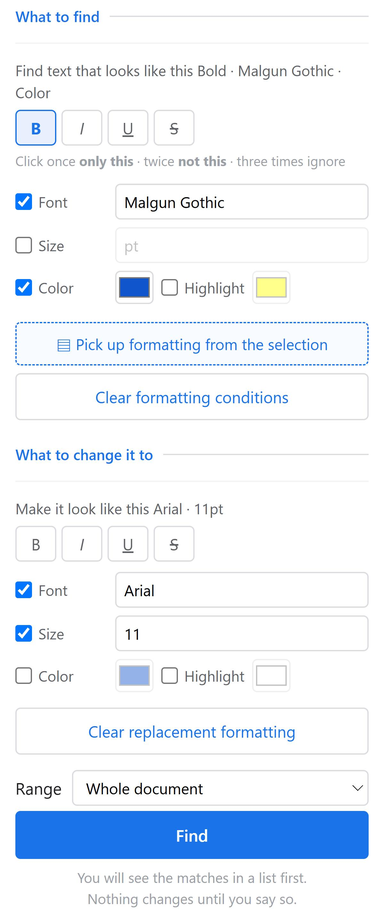
Draft stops matching draft.This is the part Google's own find does not have. Switch to Formatting or Both and you can search for how text looks.
Both puts the text and the formatting controls on screen together. Set both and a match has to satisfy both — "every bold occurrence of Figure, but not the plain ones". Leave the formatting conditions on Any and it searches by text alone, which is how you change formatting on a word wherever it appears: find Bluebird, replace it with Skylark in bold blue, and every one of them is caught whatever it looked like before. The replacement formatting only appears in Both and Formatting, so this is the mode to be in when the replacement needs to look different.
A replace is one undo step — Ctrl+Z once in the document puts everything back, text and formatting alike. That is measured, not assumed: 768 matches replaced across a 2,000-paragraph document came back exactly on one undo. A replace large enough that it has to run in more than one pass takes more than one Ctrl+Z, and that is measured too: each pass becomes its own undo step, so you press it repeatedly until the document is back. The add-on says so on screen when a replace ran in several passes.
| Scope | What it covers |
|---|---|
| Whole document | Body text, tables, footnotes, headers and footers — the parts most tools quietly skip. |
| Selection | Only what you have selected in the document right now. |
| Tables only | Every table cell, nothing outside them. |
| Footnotes only | Footnote text and nothing else — useful for citation cleanups that must not touch the body. |
| Headers & footers only | Header and footer text and nothing else. |
Remove empty lines clears blank paragraphs out of the body — the usual mess after pasting from a web page. It counts them and asks first, and Ctrl+Z puts them back. Tables and bulleted lists are left alone, and so is the blank line at the very end of the document: Google does not let an add-on remove that one.
Press Save to keep a search under a name — every condition is stored, not just the text, and comes back exactly as you left it. Saved searches live in your Google account, so they follow you to any document. The free version keeps three; the count never runs down however often you use them.
Export and Import move them between accounts as plain text.
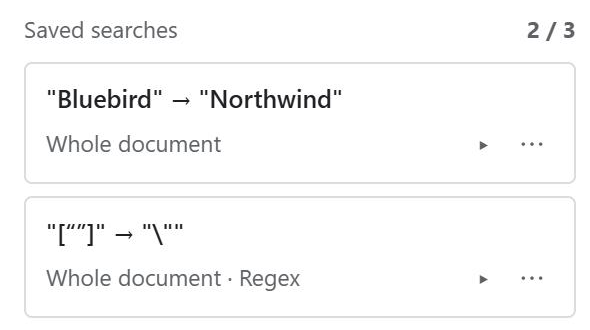
Everything described on this page is in the free version, permanently. There is no trial that expires and no usage counter that runs down. The paid version adds three things.
| Free | Paid | |
|---|---|---|
| Find and replace by text, by formatting, or by both | Yes | Yes |
| The list of matches, before anything changes | Yes | Yes |
| Ranges — selection, tables, footnotes, headers and footers | Yes | Yes |
| Regular expressions, special characters, remove empty lines | Yes | Yes |
| Saved searches | 3 | Unlimited |
| Run several saved searches in one click | — | Yes |
| History of what was replaced, and undo from it | — | Yes |
One limit on that last row, so it is not a surprise later: each run is recorded up to a fixed size, so a run with several hundred replacements is still listed with its count but cannot be undone from the history — the add-on says so on that row, and Ctrl+Z in the document still works. Run a large job in smaller pieces to keep it undoable from the history.
And one limit that does not depend on size: a run that changed formatting is never undoable from the history. The add-on does not record what the formatting was before, so putting only the text back would leave the run half reversed — it marks that row as not undoable instead. Ctrl+Z in the document still undoes it.
| License | Price | What it is |
|---|---|---|
| Lifetime | $59 once | One payment, nothing further to pay. Covers the paid features and their updates for as long as the product is published. |
| Annual | $29 / year | Renews every twelve months until you cancel. The price you sign up at is kept for as long as the subscription runs without a break. |
The price shown is the total you pay. Sales tax and VAT are included in it, not added at the end. Prices are in US dollars.
Checkout is handled by Lemon Squeezy. You pick Lifetime or Annual on that page, and your license key arrives by email as soon as the payment goes through.
One license covers up to 3 Google accounts. Release license in the add-on's settings frees a slot so you can move it to a different account.
Refunds. Within 14 days of purchase, write to [email protected] and say what went wrong. No justification beyond that is required. The full wording is in the Terms of Service, section 3.
Canceling. Checkout and billing are handled by Lemon Squeezy, which is the seller of record. The receipt email links to their customer portal, and an annual license is canceled there at any time. Canceling stops the renewal; the paid features keep working until the twelve months are up, and the free version keeps working after that.
Your license key is on the confirmation screen right after payment, and in the receipt email. To turn on the paid features:
One license covers up to 3 Google accounts. To move it to a different account, press Release on this account in the same place — that frees a slot.
The add-on checks the key with Lemon Squeezy at most once every seven days. A single check that cannot reach them switches nothing off: the paid features keep working for up to 14 days after the last check that did succeed. Past that, they stay off until a check gets through again. The free features are not affected either way.
Common problems and what to put in a bug report are on the support page, or write to [email protected].